Signing in
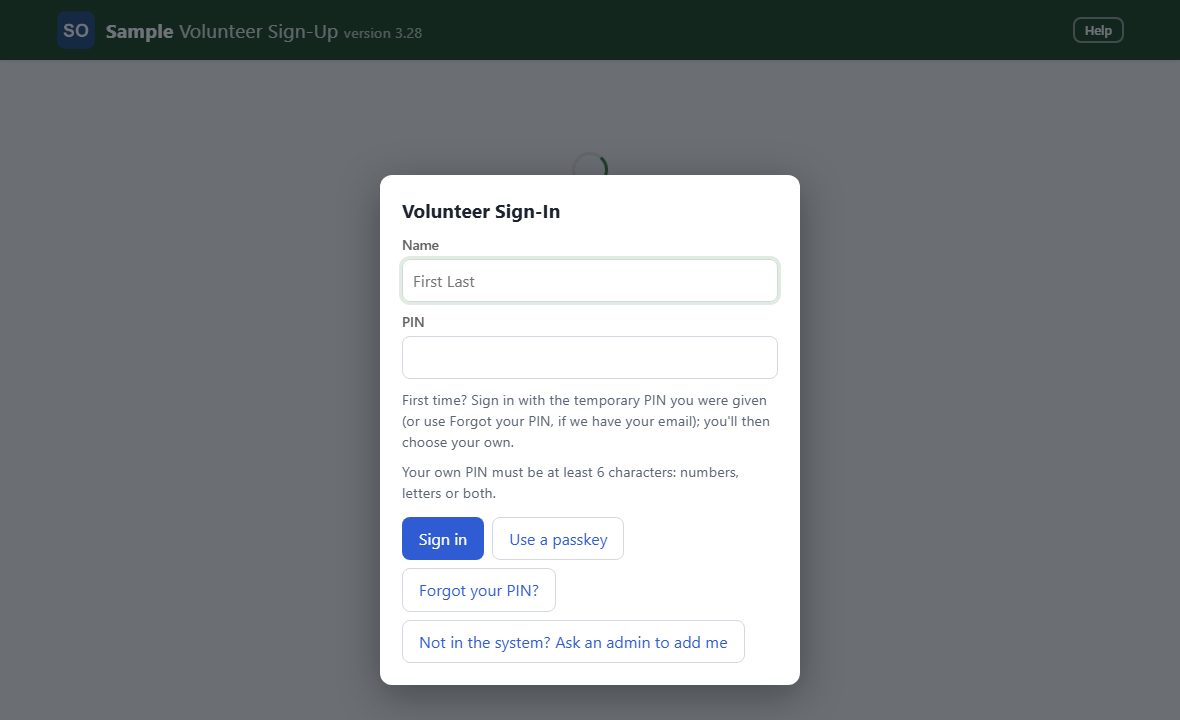
Open the app and the sign-in box appears. Everyone signs in the same way, with a name and a PIN.
Scheduling lets you see your organization's events and sign up for shifts, from a computer or a phone. This manual walks through everything a volunteer can do. Admins have their own manual (the Help button on the Admin Dashboard), linked here.
Every entry in the contents, and every link in the text, jumps to that topic. The pictures show a sample organization with made-up events and people.
Open the app and the sign-in box appears. Everyone signs in the same way, with a name and a PIN.
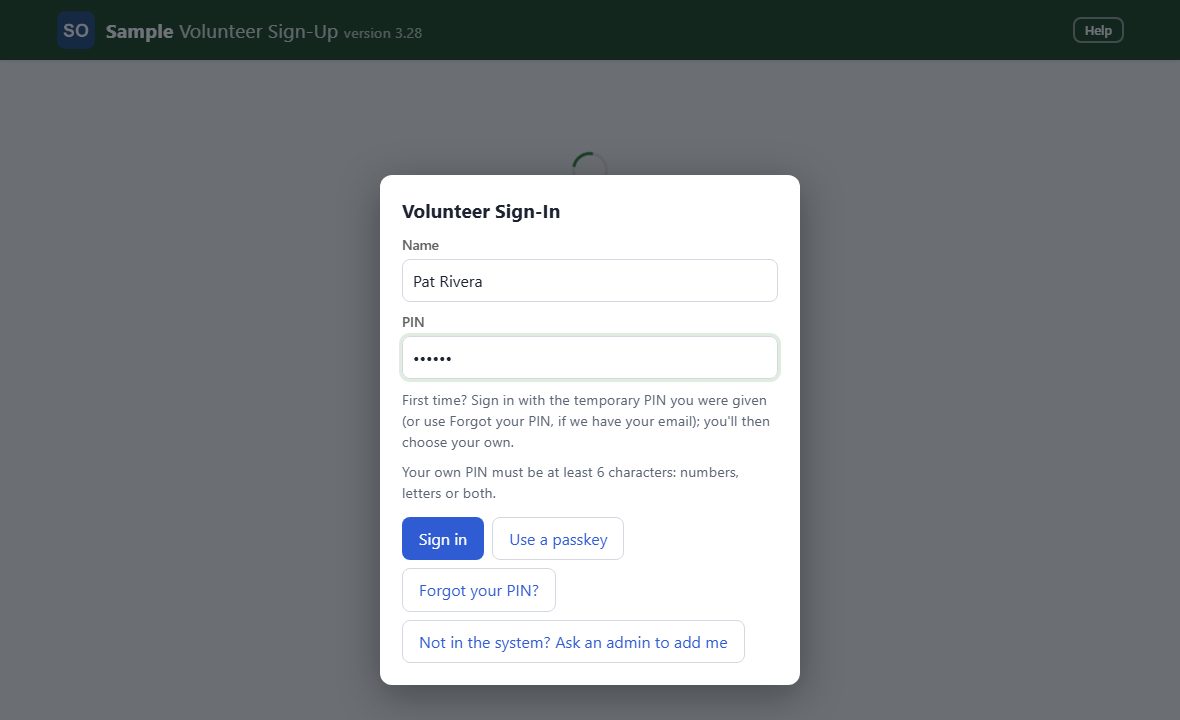
Type your full name and your PIN, then tap Sign in. A PIN is at least 6 characters (numbers, letters or both). First time here? Sign in with the temporary PIN an admin gave you; the box then asks you to choose your own PIN.
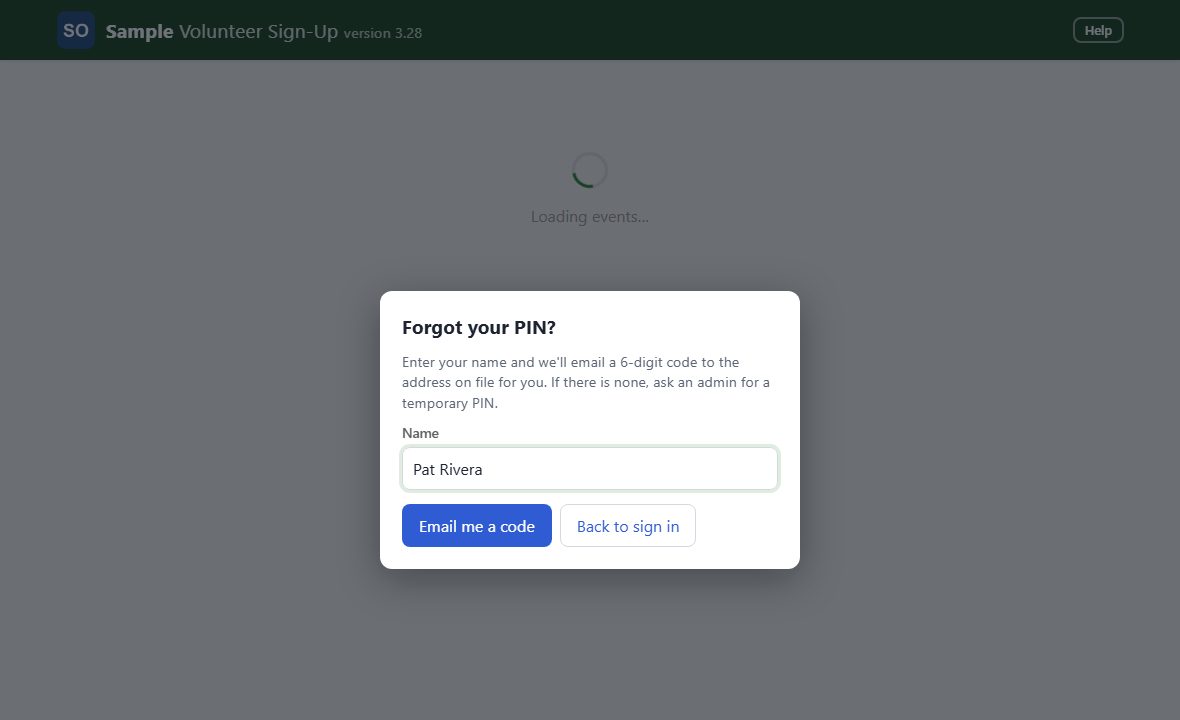
Tap Forgot your PIN?, enter your name, and tap Email me a code. A 6-digit code is emailed to the address an admin has on file for you (it works once and expires in 10 minutes). Type the code and a new PIN, then tap Save new PIN. If no email is on file, ask an admin for a temporary PIN.
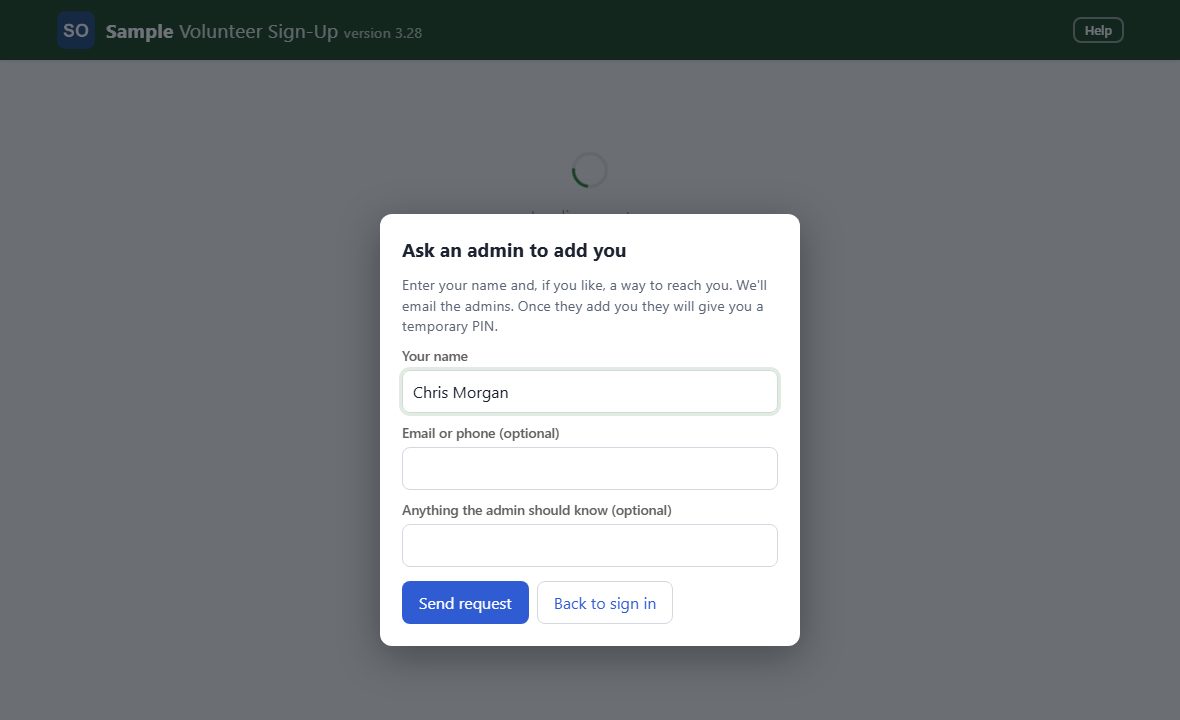
Tap Not in the system? Ask an admin to add me, enter your name (and, if you like, an email or phone), and tap Send request. The admins are emailed; once they add you, they give you a temporary PIN.
Once signed in, pick an event from the Event list to see its shifts and open slots. Each shift shows its time and every slot: taken slots show the volunteer's name, open ones a Sign Up button. The Committees button at the top right switches to your committees (Committees); it turns into Events so you can switch back.
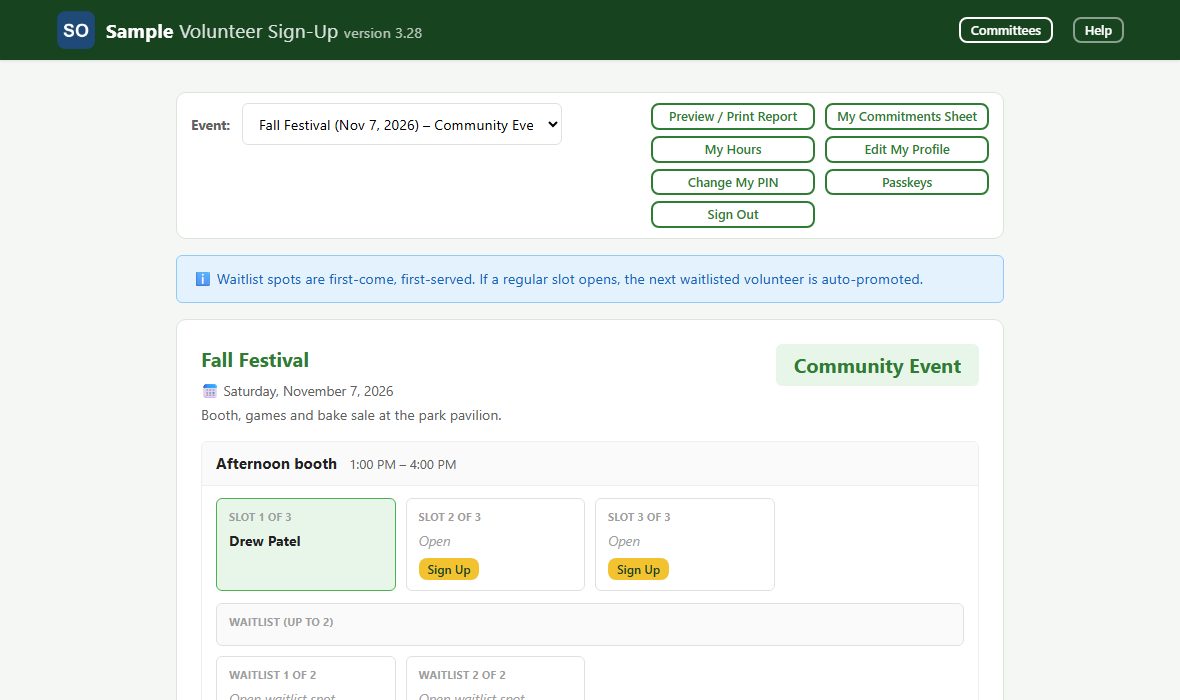
Most events are split into time-based shifts. Some use positions instead: a named role you hold for the whole event, such as Driver. Positions have a purple POSITION tag. You sign up for a position exactly like a shift, and it counts toward your hours the same way.
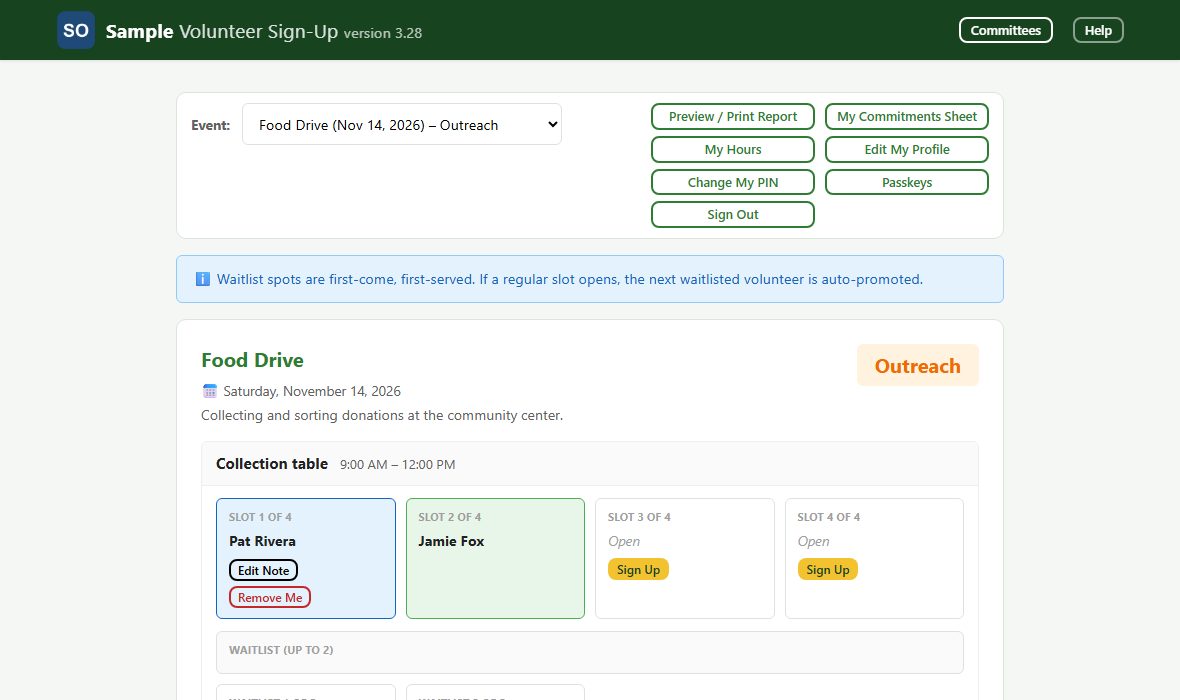
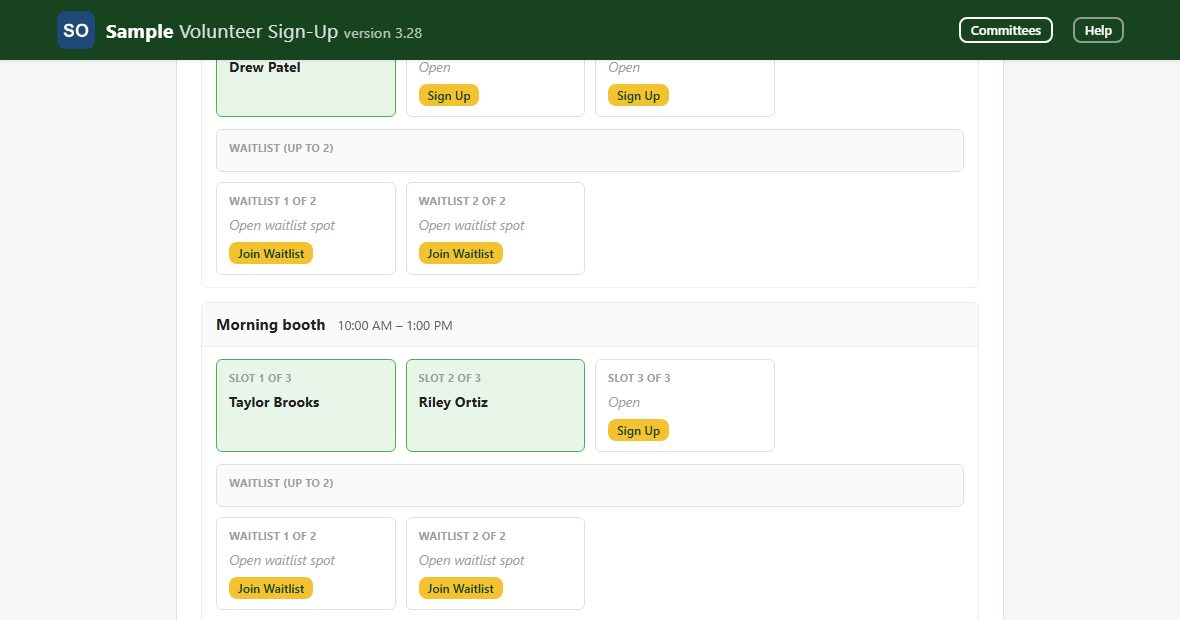
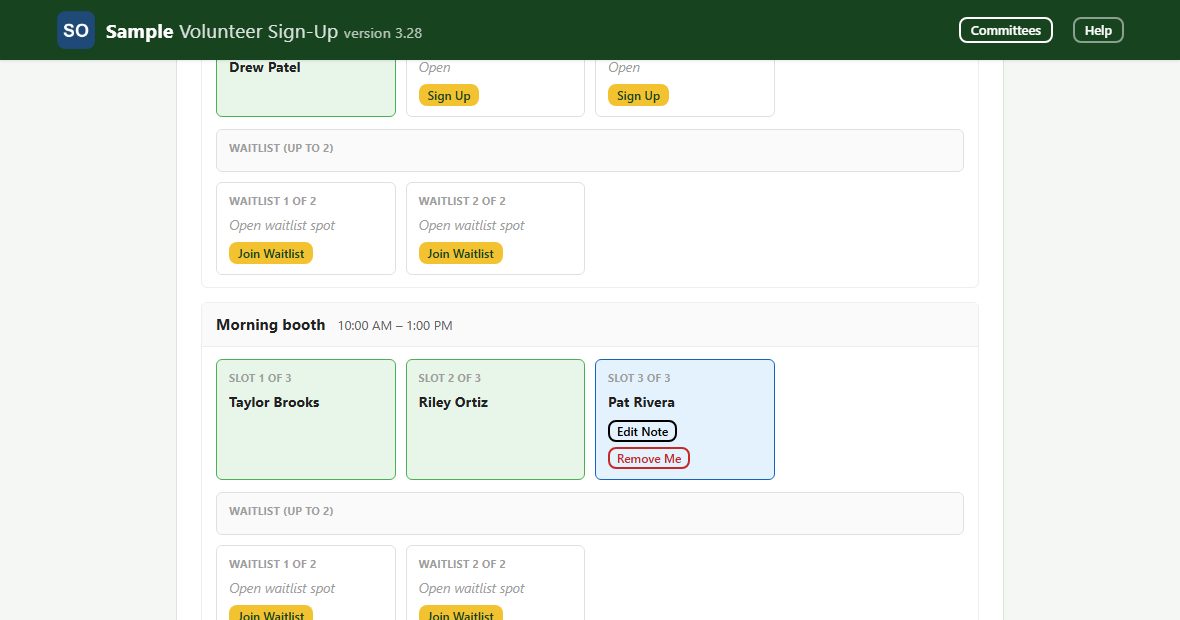
Find an open slot and tap Sign Up. If every slot is taken, tap Join Waitlist on one of the two waitlist spots; if a regular slot opens, the next waitlisted volunteer is moved up automatically. A shift marked Locked can no longer be changed.
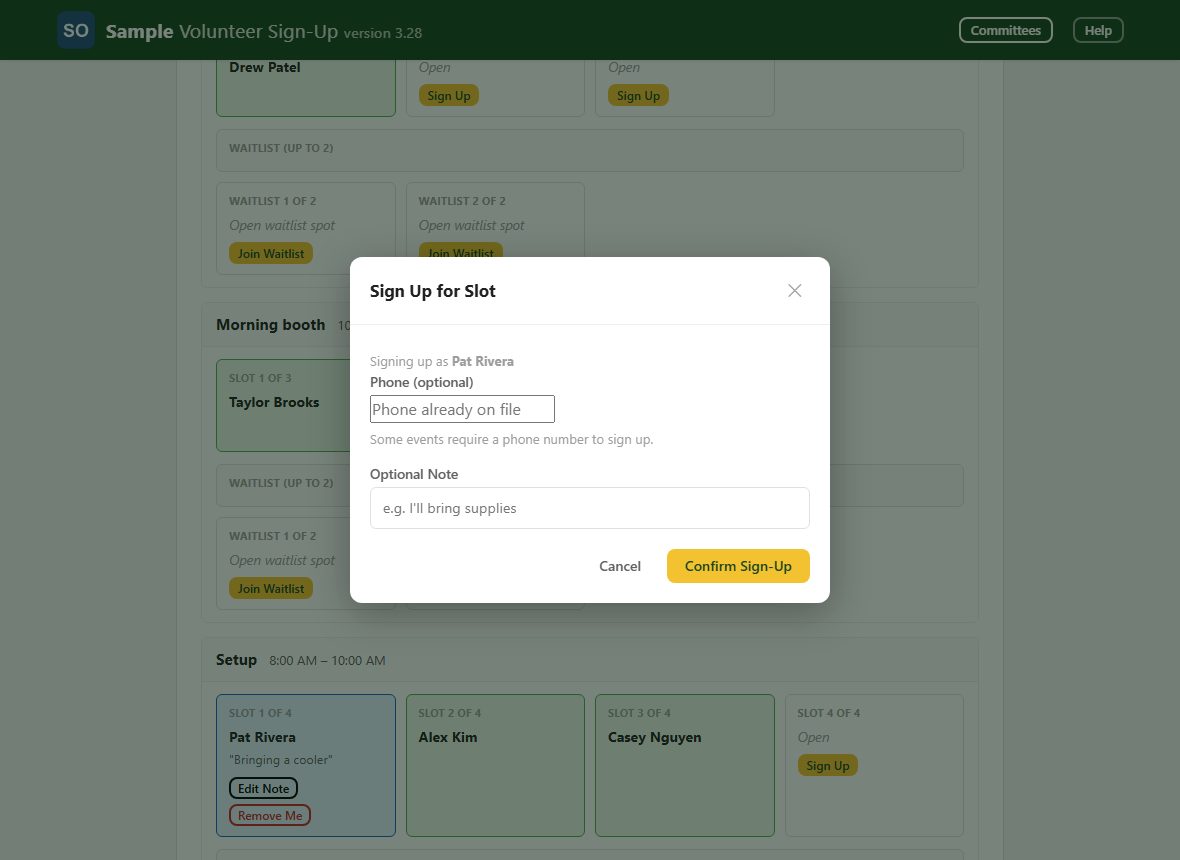
The box shows who you are signing up as. Add a phone number if the event asks for one, add an optional note, then tap Confirm Sign-Up. You are already signed in, so there is no PIN to type again. If the shift overlaps another one you hold at the same event, the app tells you and doesn't sign you up.
Your name now appears on the slot, and you can tap Edit Note or Remove Me at any time. (On the waitlist the button reads Leave Waitlist.)
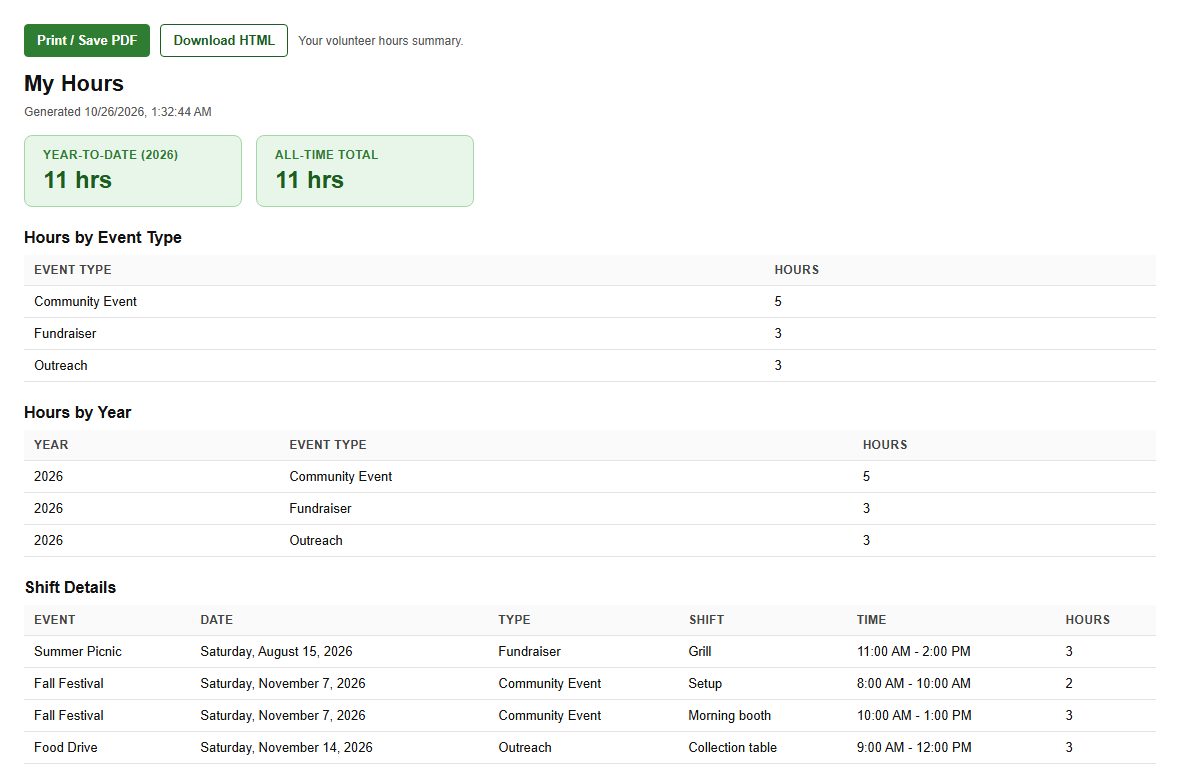
My Hours shows your credited volunteer hours, this year and all time, split by event type and year, with every shift listed, including events that have since ended. On a computer it opens in a new window with Print / Save PDF and Download HTML.
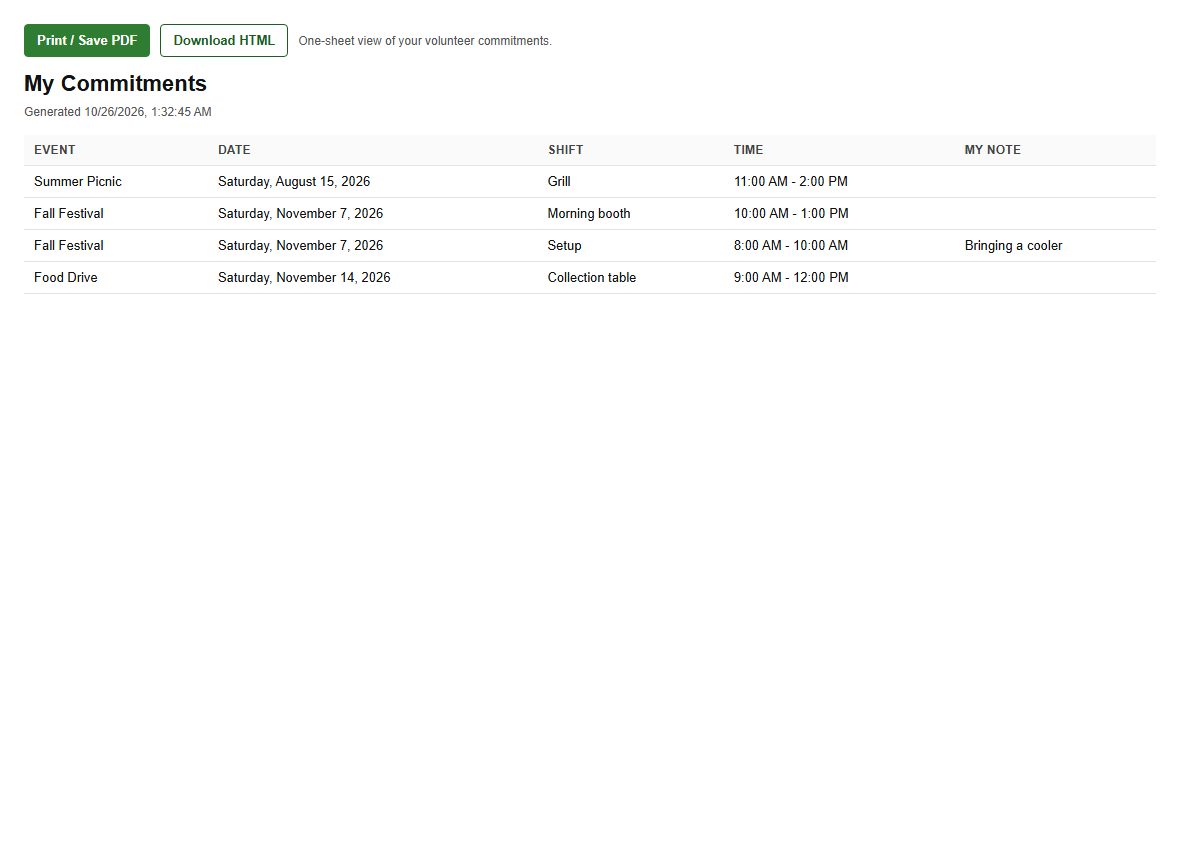
A printable summary of every shift you've signed up for, with your notes. On a phone it opens inside the app; tap Back to App to return.
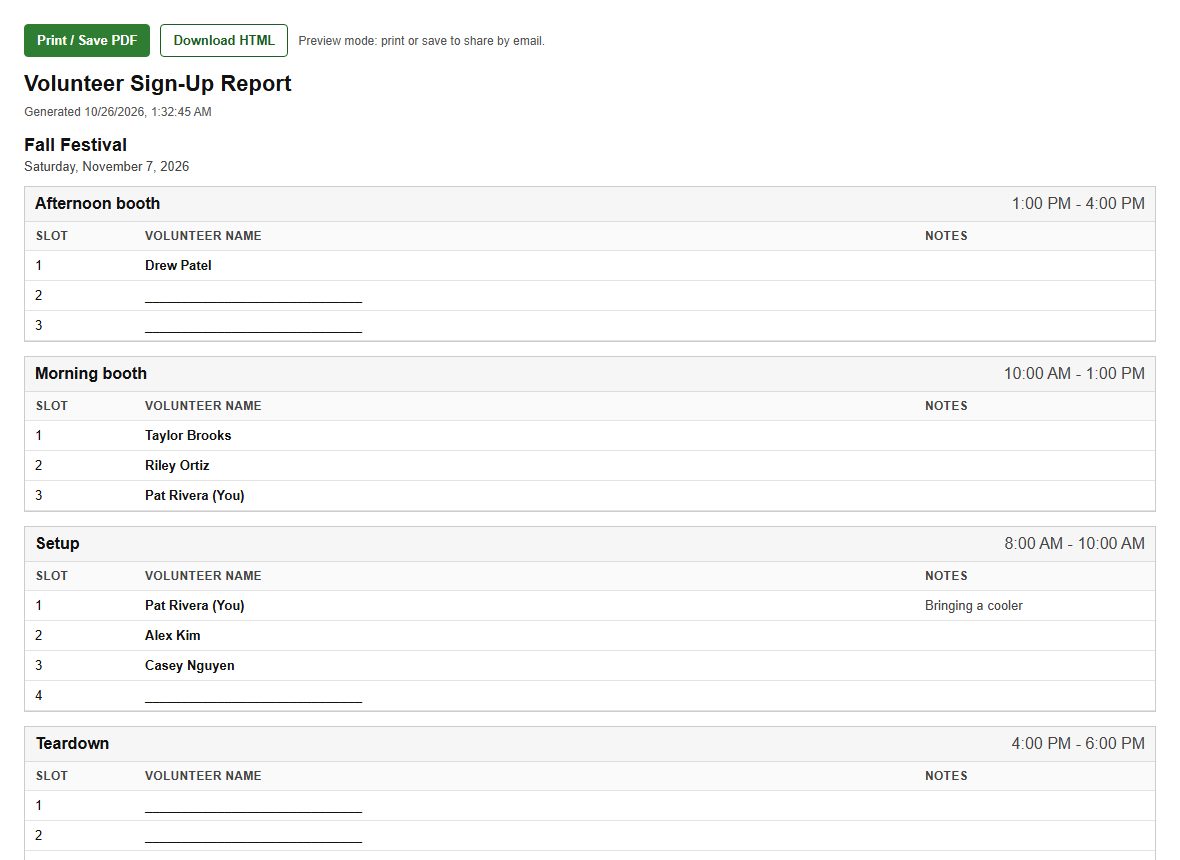
A printable sign-up report for the event you have selected. Use Print / Save PDF to print or save it, or Download HTML to keep a copy.
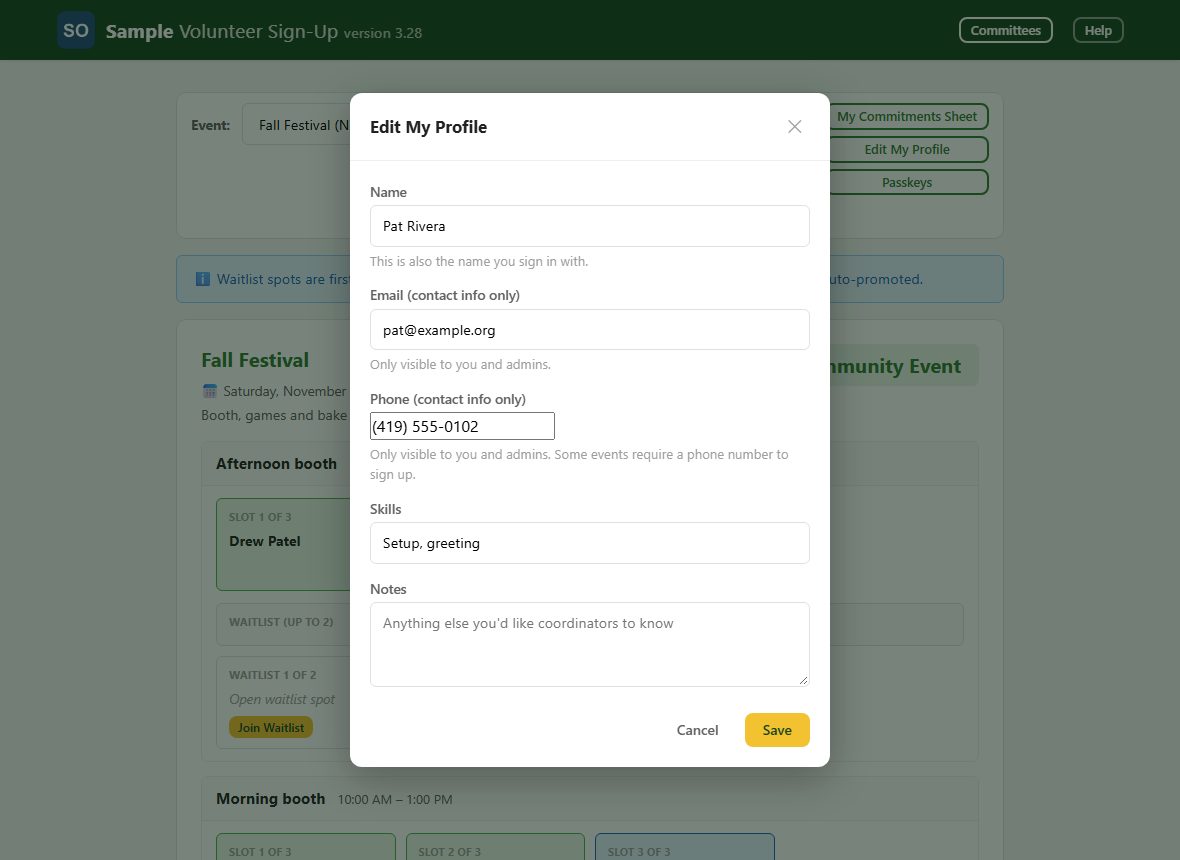
Update your name, email, phone, skills and notes. Your name is also the name you sign in with. Your email and phone are seen only by you and the admins.
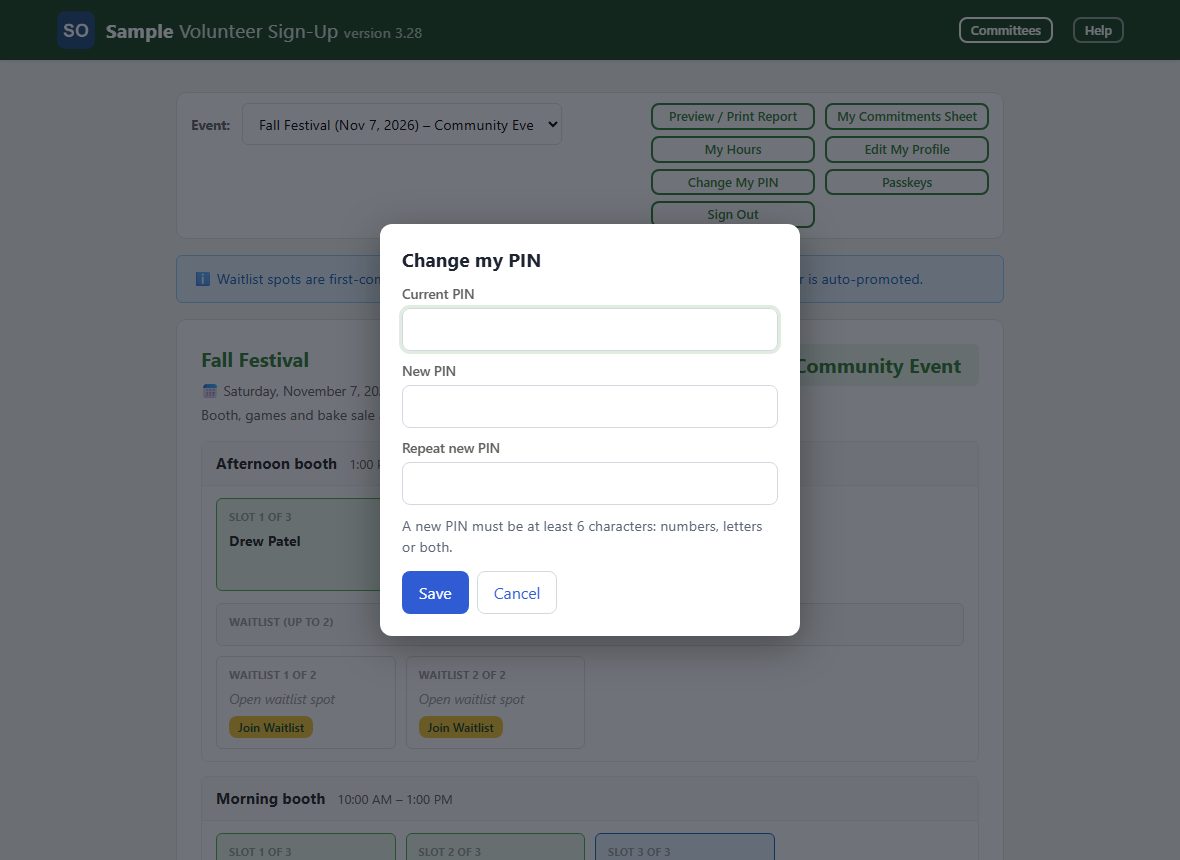
Tap Change My PIN, type your current PIN, then your new PIN twice, and tap Save. A new PIN is at least 6 characters.
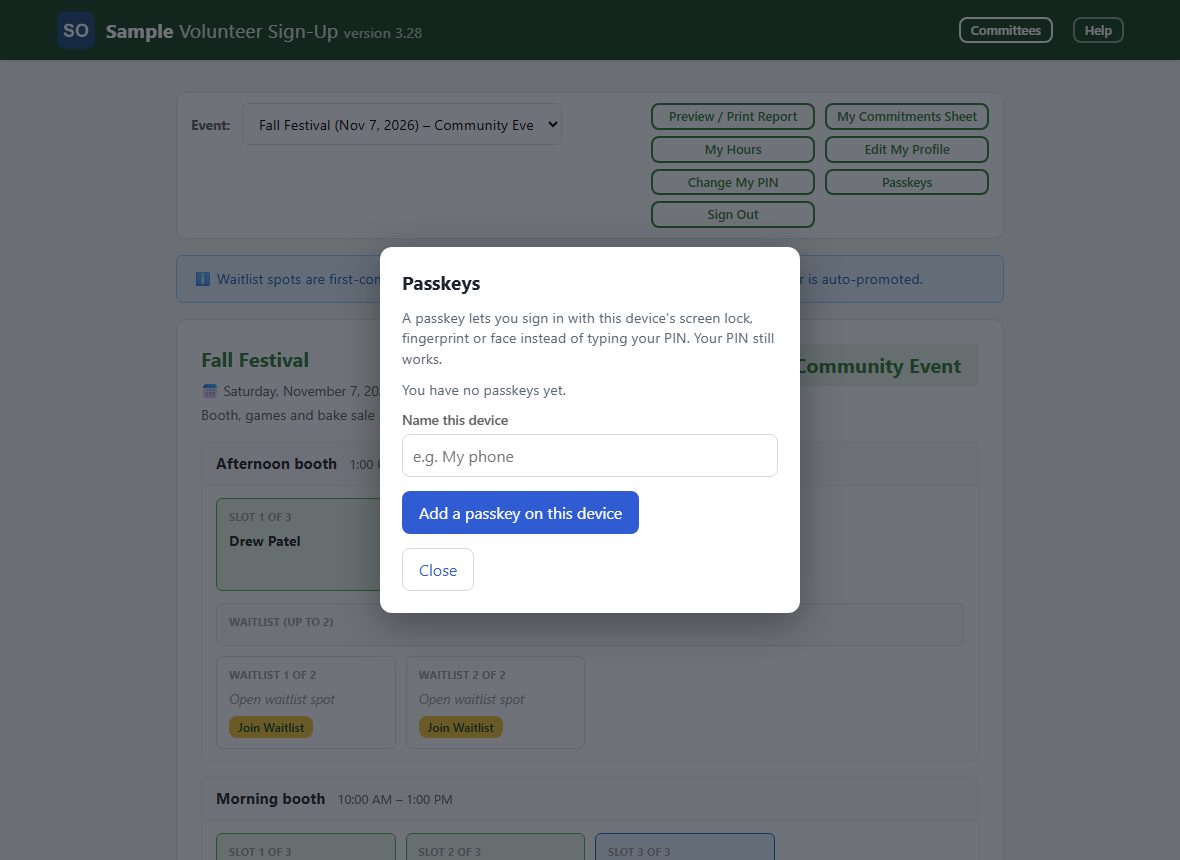
Tap Passkeys to sign in faster next time. Name this device, tap Add a passkey on this device, and your phone or computer asks for your fingerprint, face or screen lock. Afterwards, tap Use a passkey in the sign-in box instead of typing your name and PIN; your PIN still works.
The Help button at the top right opens this manual in a new tab, signed in or not. Tap Sign Out when you are done, especially on a shared computer.
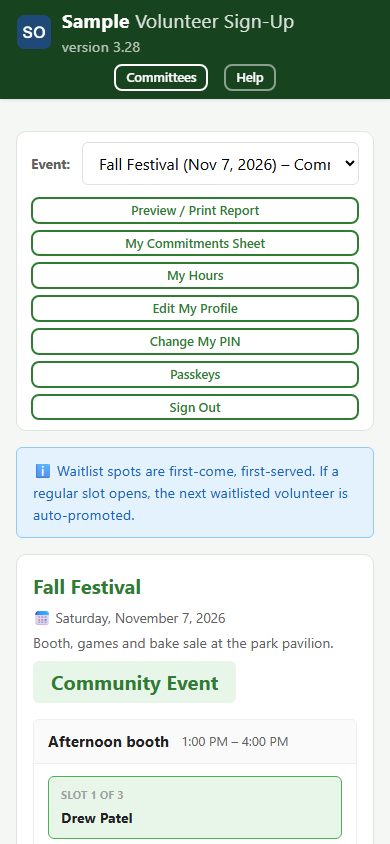
Back to contentsEverything works the same on a phone: the page narrows to one column and the buttons are the same. Your phone may offer to add the app to your home screen.
When a new version has been downloaded, a bar at the top says A new version is available. Tap Update now to switch to it; nothing changes until you tap.
Back to contentsIf the app can't reach the internet it shows the schedule it saved last time, and a notice at the top says when that was. Changes need a connection, so wait until you're back online before signing up.
Back to contentsIf your organization's license isn't active, everyone sees a Scheduling is paused screen. Tell a site admin; once it is renewed the screen clears on the next check, or tap Check again.
Back to contentsCommittees plan work between events. Tap Committees at the top right to see them all: each shows its chair, how many members it has, and its next meeting. Tasks assigned to you that aren't done yet are listed at the top under My committee tasks, each with a Mark done button.
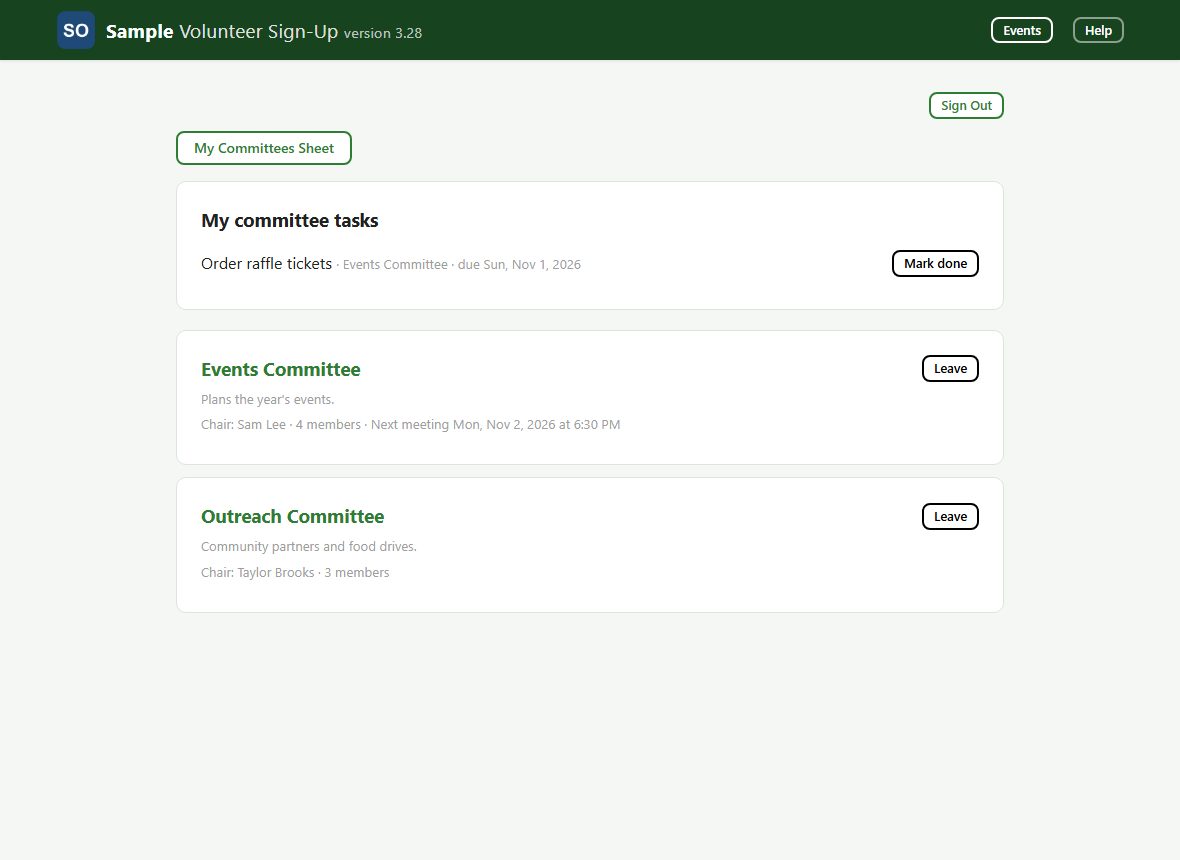
Tap Join to join a committee; tap Leave to leave it. This is instant until the committee's first meeting starts. After that, Join becomes Request to join (and Leave becomes Request to leave): your request goes to an admin and the button reads Request pending until it is answered. The chair can't leave; an admin has to choose a new chair first.
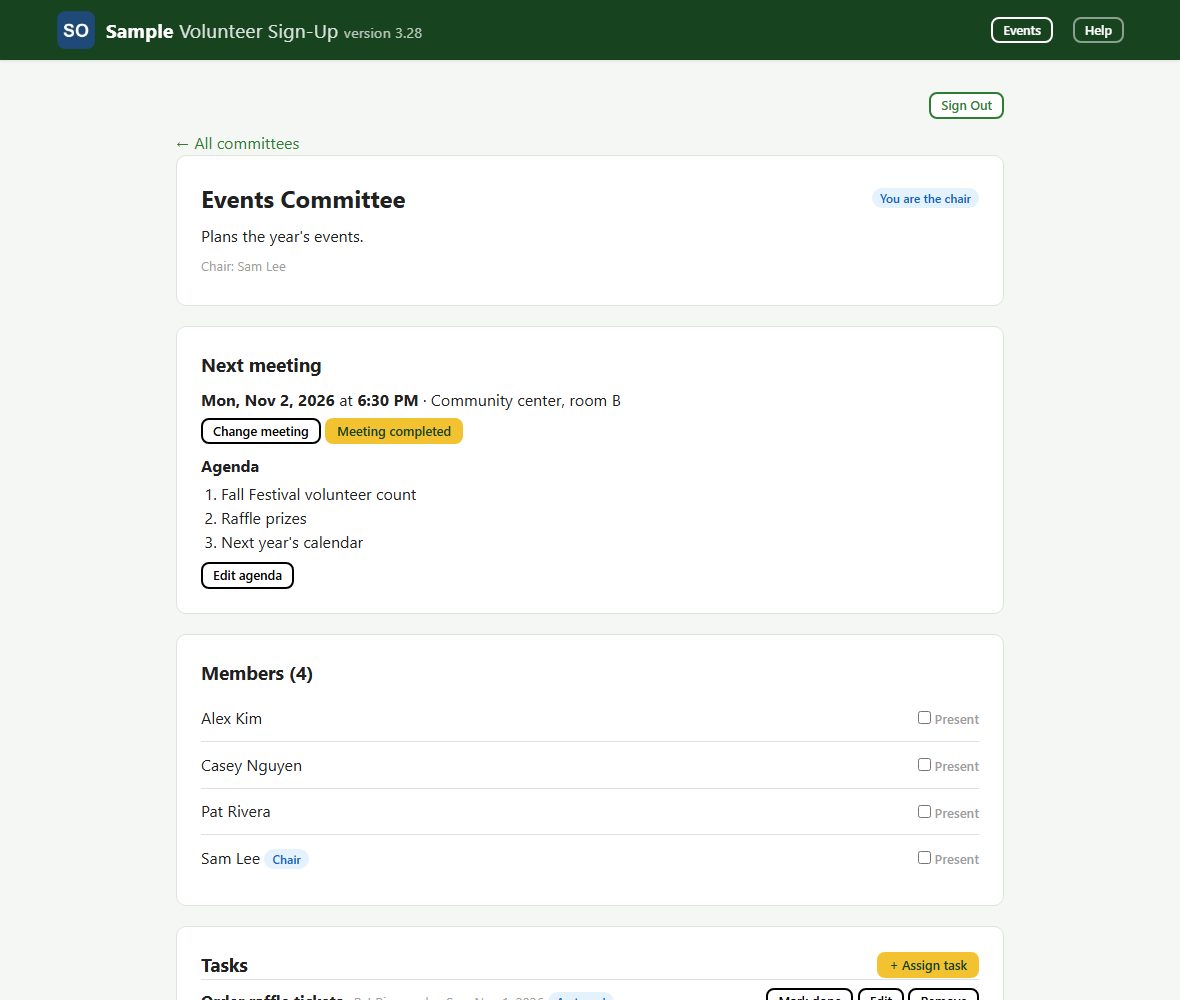
Back to contentsTap a committee's name to see its chair, the next meeting (date, start time and place), the agenda, the members, the tasks and past meetings. Anyone signed in can read every committee, including ones you are not on.
Each task shows who it is assigned to, its due date and a note. The tag reads Assigned, Done or Past due. If a task is yours, tap Mark done when it is finished (Reopen undoes it). The chair and admins can mark any task done.
Back to contentsOn the Committees screen, My Committees Sheet prints a one-page summary of each committee you are on: its chair, next meeting, and your own tasks with due dates.
Back to contentsUnder Past meetings, tap a date to see that meeting's agenda and who attended. A finished meeting is locked.
Back to contentsAn admin chooses each committee's chair from its members. On your committee's page you get extra buttons: Change meeting, Meeting completed, Edit agenda, + Assign task, a Present tick box beside each member, and Edit and Remove on every task.
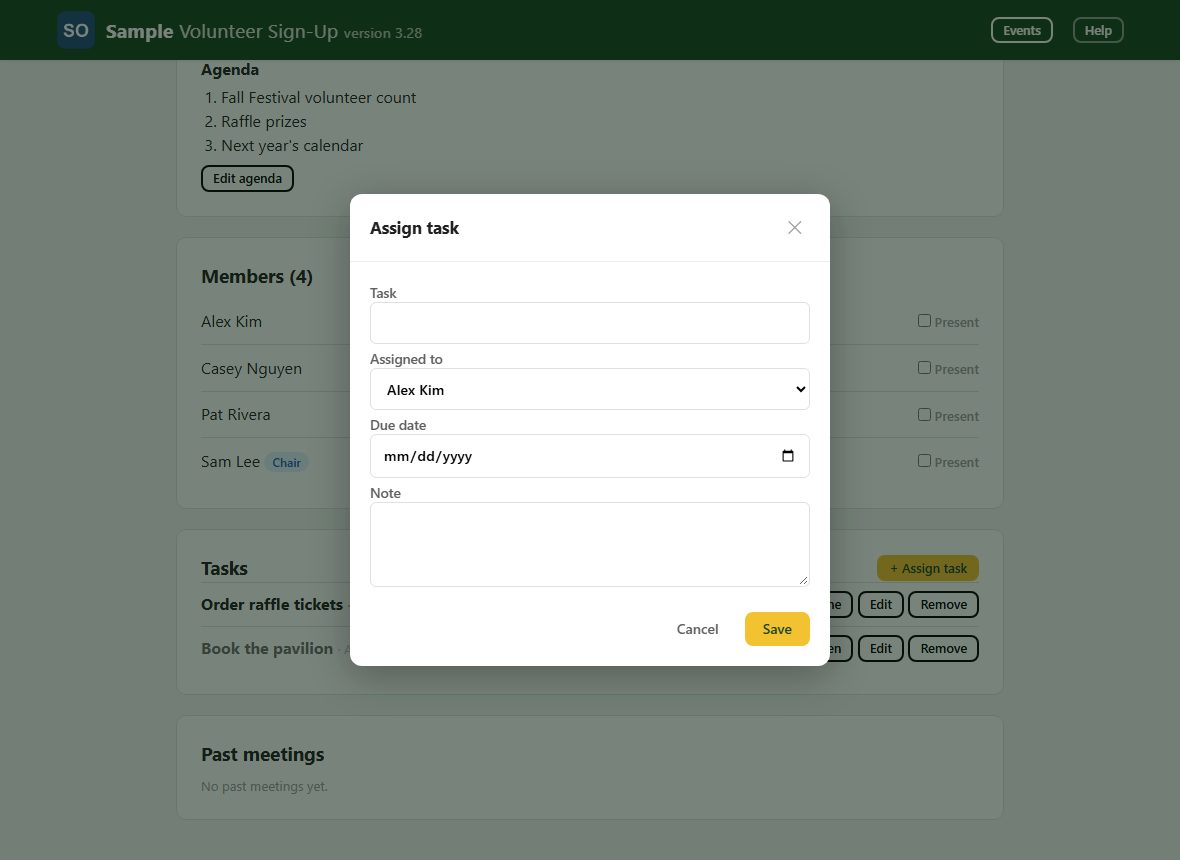
Tap + Assign task, then enter the task, who it is assigned to (a member), a due date and a note, and tap Save. Edit and Remove change or delete a task later.
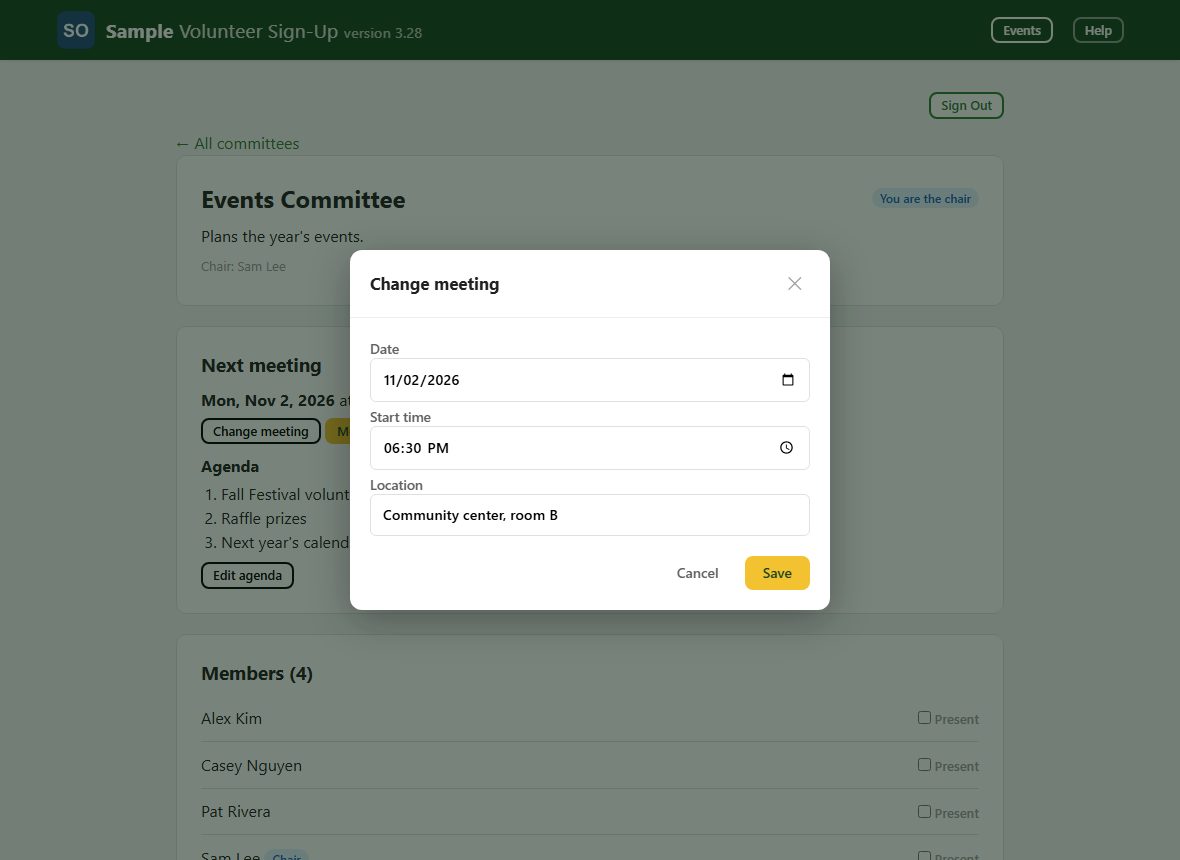
A committee has one open meeting at a time. Tap Set next meeting (or Change meeting) and enter the date, start time and location. The meeting stays open past its date until you finish it.
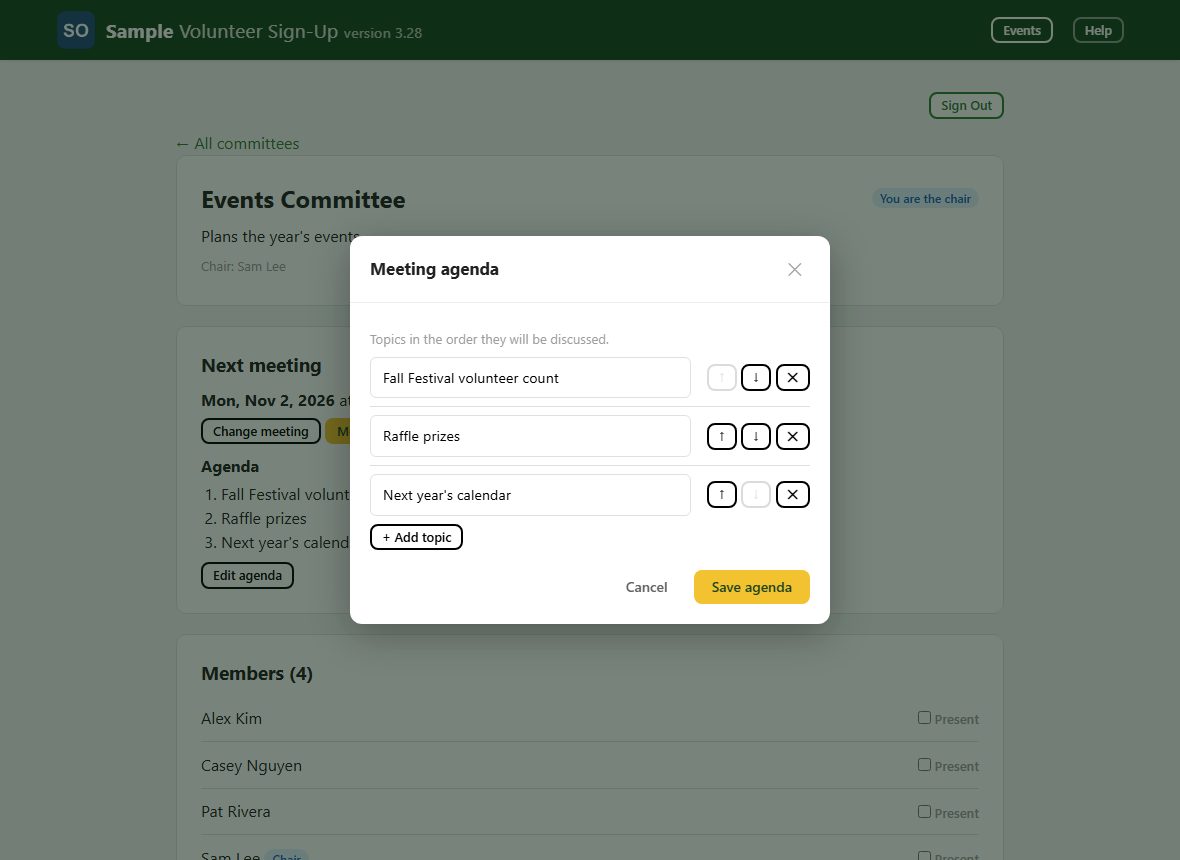
Tap Edit agenda to list the topics in the order they will be discussed. Use + Add topic, the up and down arrows to reorder, and the X to remove one, then tap Save agenda.
While the meeting is open, tick Present next to each member who attended. When the meeting is over, tap Meeting completed and confirm. Its agenda and attendance are then locked and it moves to Past meetings; you can then set the next meeting.
Back to contents